How to use A-Dictionary
This guide turns the original onboarding into one place you can come back to later: what the app is for, which practice mode to pick, and where the AI tools help.
Anyone learning a foreign language.
Who’s this for?
If you’ve realized the green owl won’t make you fluent by itself — congrats. You need words. A lot of them.
Why?
Everyone who got fluent did the same thing: kept a word list and learned 10–50 words a day. That’s the whole secret.
Back then it was pain and paper lists. Today you have A-Dictionary. You’re welcome.
Use this like your personal word stash

How?
Don’t know a word? Save it. Or tell the AI: “make me a word pack” and let it do the heavy lifting.
So what now?
We packed in multiple ways to memorize. If one method doesn’t click, switch. Your brain is picky. We don’t take it personally.
Depends on your "memory stage"

How exactly?
Swipe to Stage 1 - but if you’re reading this article instead, here’s the full map. Pick the kind of practice that matches how well you know the word right now.
Flashcards
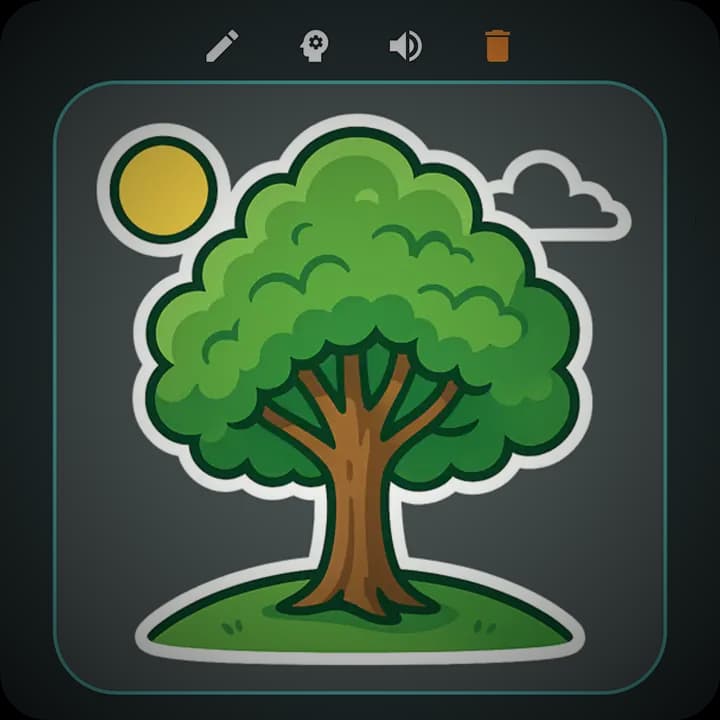
Stage 1: Don’t remember a damn thing. Use:
Word as a card: image on one side, translation on the other. Best way to start. Simple. Effective. Slightly addictive.
Old-school dictionary mode
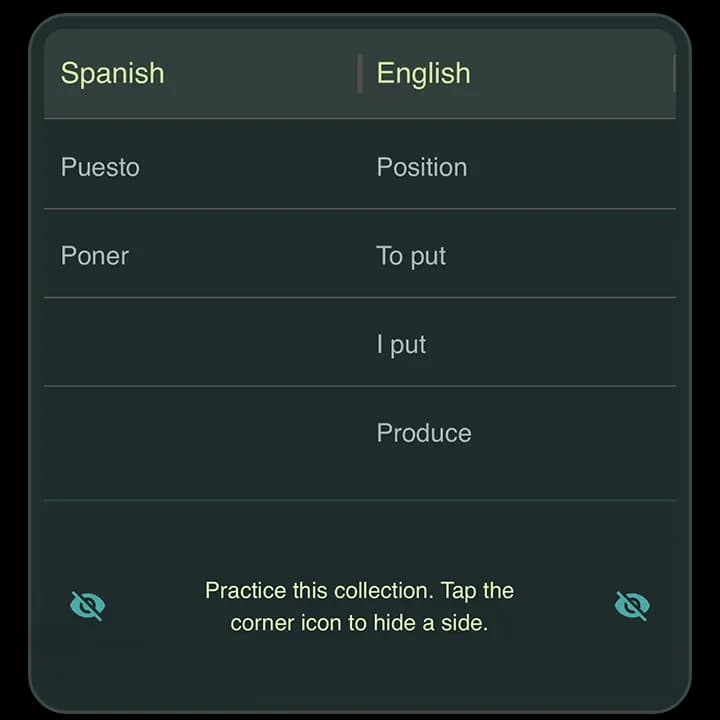
Stage 2: Almost there
Two columns: word + translation. Hide one side and test yourself. Classic. Brutally honest.
Old-school mode, but you must type
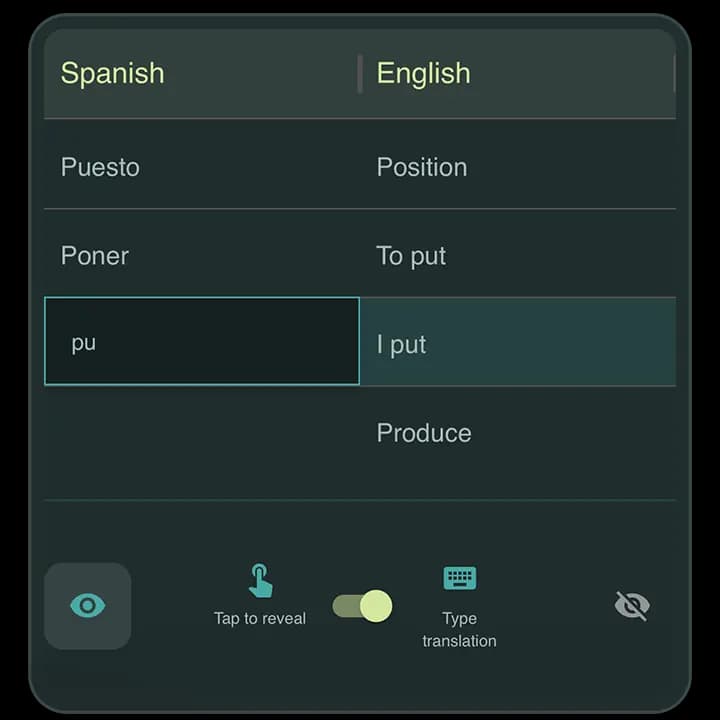
Stage 3: You think you know it
Same idea - but now you have to enter the translation correctly. Confidence is cute. Accuracy is better.
Mini-stories made from your words

Stage 4: Real life mode
AI builds short stories using your words. Read or listen. Context locks things in way better than raw lists. Your brain likes stories. Deal with it.
Smart tests
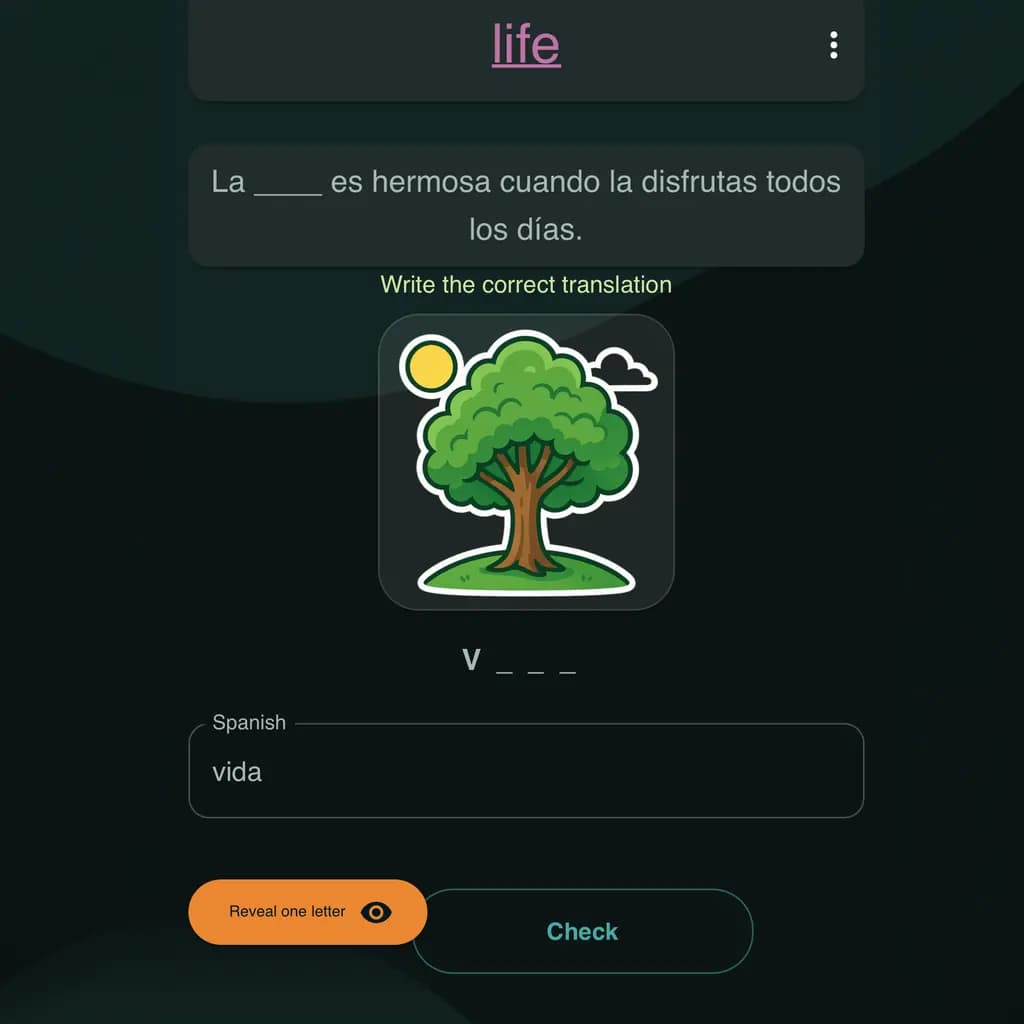
Stage 5: The ‘stop forgetting’ mode
The app tracks what you keep missing and turns it into quick tests. That’s spaced repetition. Use responsibly... unless you enjoy getting humbled.
For example:
Also: quality-of-life stuff
The app also gives you a few faster ways to move from “I found a word” to “I can use this word.”
1) Get a quick translation
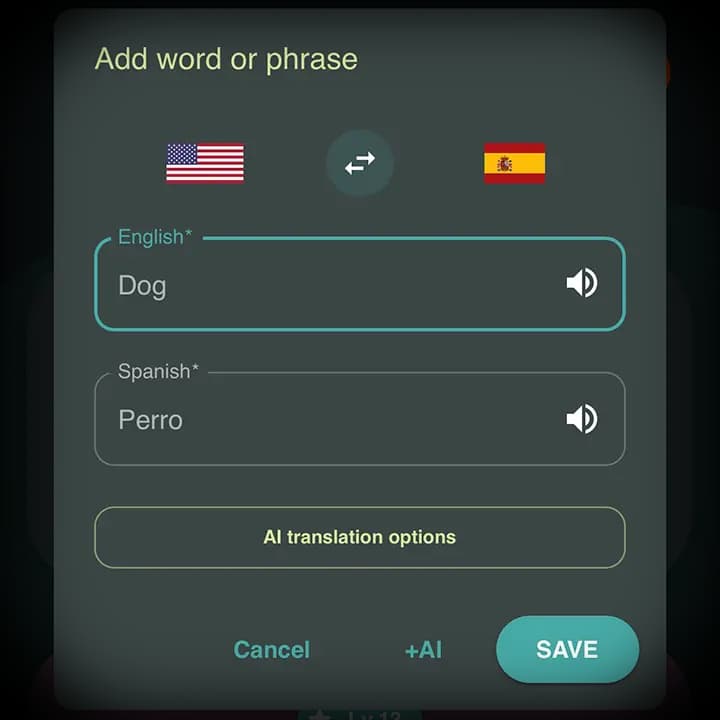
When you add a word, you can...
Like a translator app, except you don’t have to bounce between apps like a distracted gremlin.
Try “AI translation options”
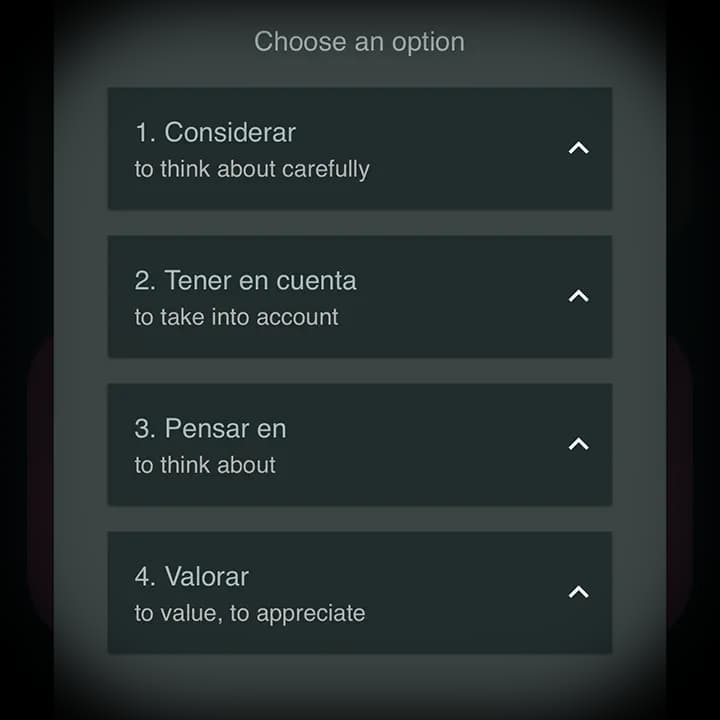
2) If the quick translation is meh
We ask the AI for a few better translations. You just pick the one you like. Low effort. High payoff.
Because there’s no such thing as too much AI.
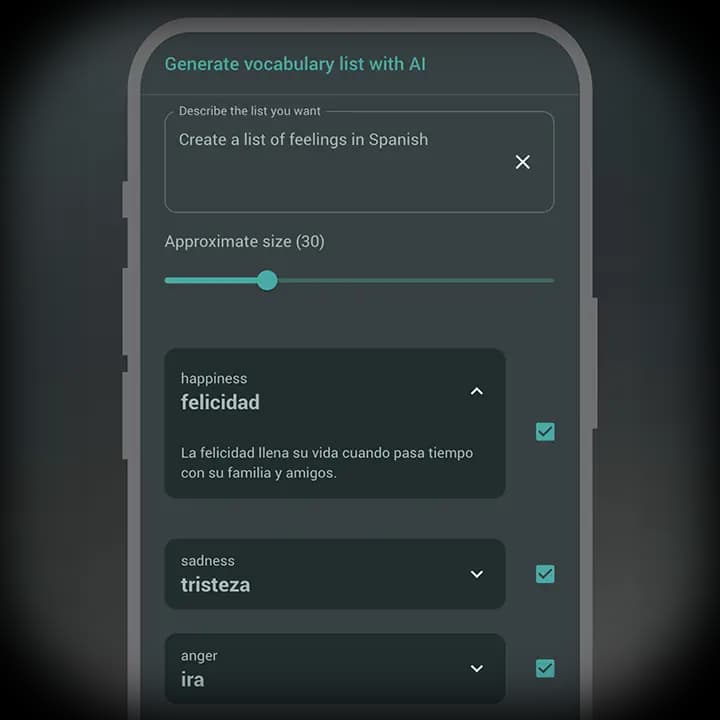
3) For the ‘I can’t be bothered’ days
There’s a magic button that generates a whole word collection from a theme: “doctor visit”, “animals”, “vampires”, “feelings”... you name it.
Thanks for your attention span
That’s it
Enjoy the app. We’ll go build the “Learn it for me” button now. (Kidding. Unless...?)