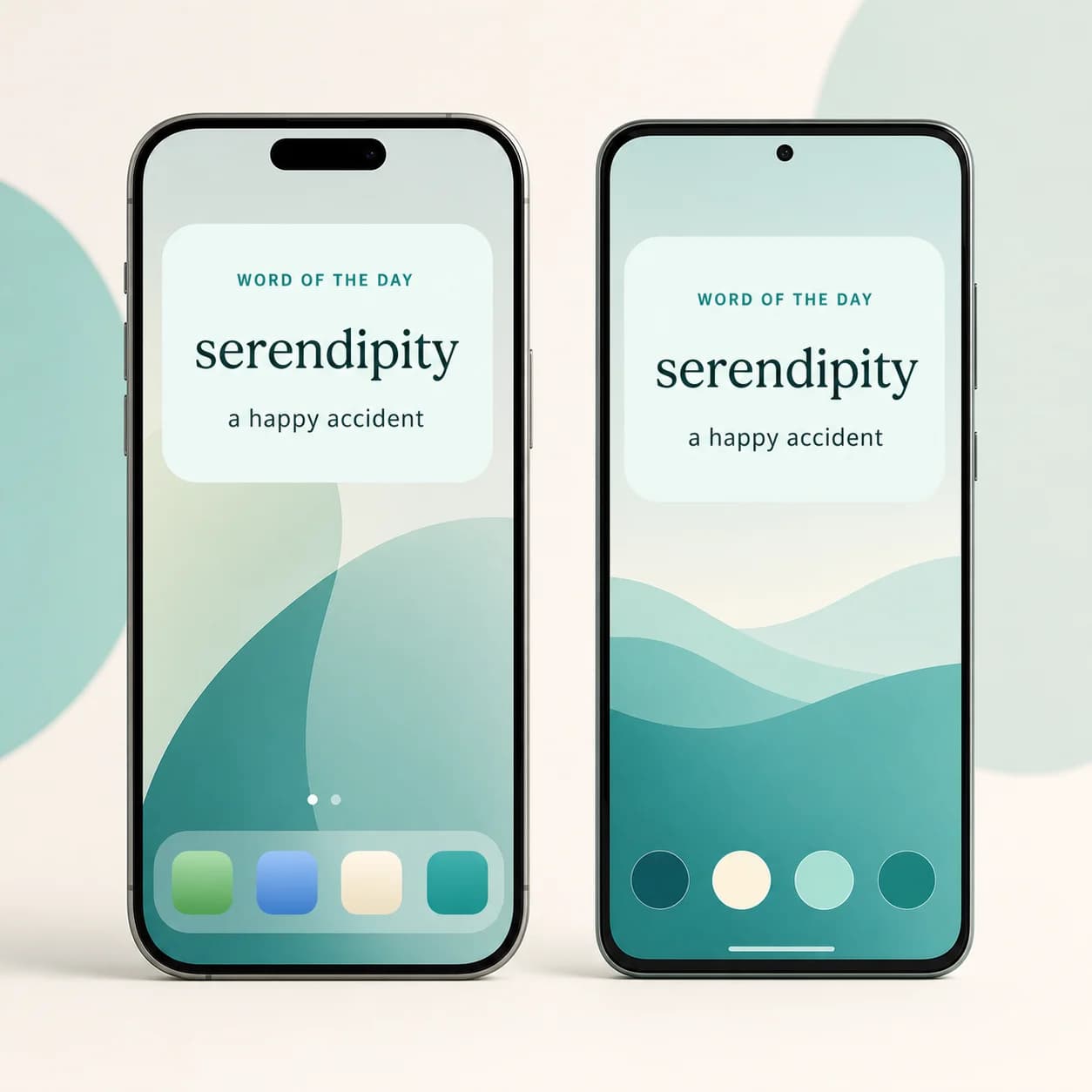
Add the Word of the Day widget
Keep one of your A-Dictionary words visible throughout the day. Here is how to add the widget on iPhone and Android.
Before you start
Install the latest version of A-Dictionary, sign in, and open the app once while you are online. This lets the app prepare the words used by the widget.
The widget does not have a separate word-selection screen. It shows a word supplied by your A-Dictionary and changes automatically. If it says Open A-Dictionary to load today’s word, tap the widget or open the app once.
Add it to the iPhone Home Screen
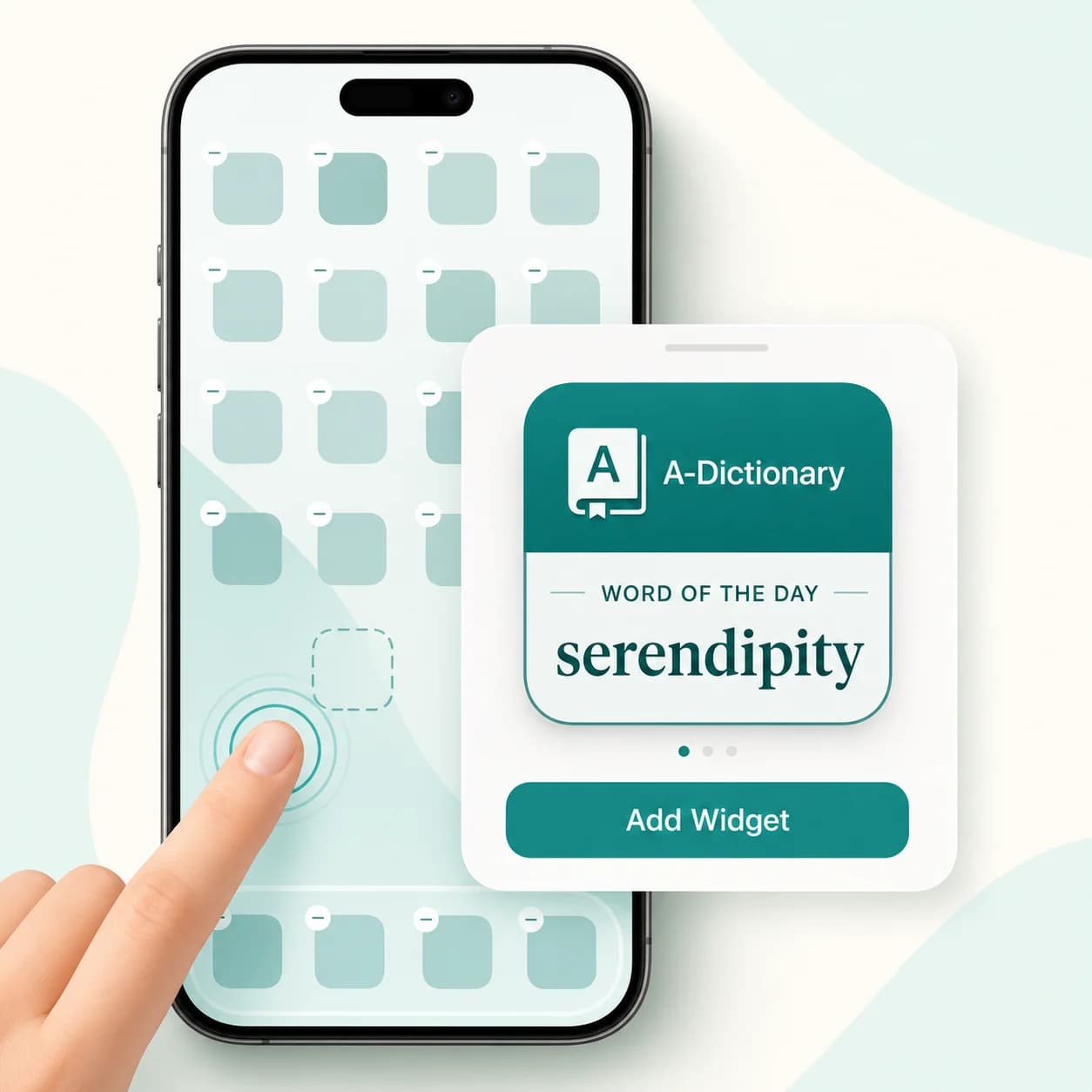
- Open A-Dictionary once, then return to the Home Screen.
- Touch and hold an empty area until the app icons begin to jiggle.
- Tap Edit, then Add Widget. On earlier iOS versions, tap the + button instead.
- Search for or select A-Dictionary.
- Swipe to choose the small or medium Word of the Day widget.
- Tap Add Widget, place it where you want, then tap Done.
You can move the widget later by touching and holding it. Tapping the widget opens A-Dictionary.
Add it to the iPhone Lock Screen
The Lock Screen version requires iOS 16 or later.
- Wake your iPhone, then touch and hold the Lock Screen.
- Tap Customize, then choose Lock Screen.
- Tap the widget area below the clock.
- Find A-Dictionary and add the rectangular or inline Word of the Day widget.
- Close the widget picker and tap Done.
If the widget area is full, remove an existing widget first. Apple’s current instructions are available in its iPhone widget guide.
Add it to the Android Home Screen
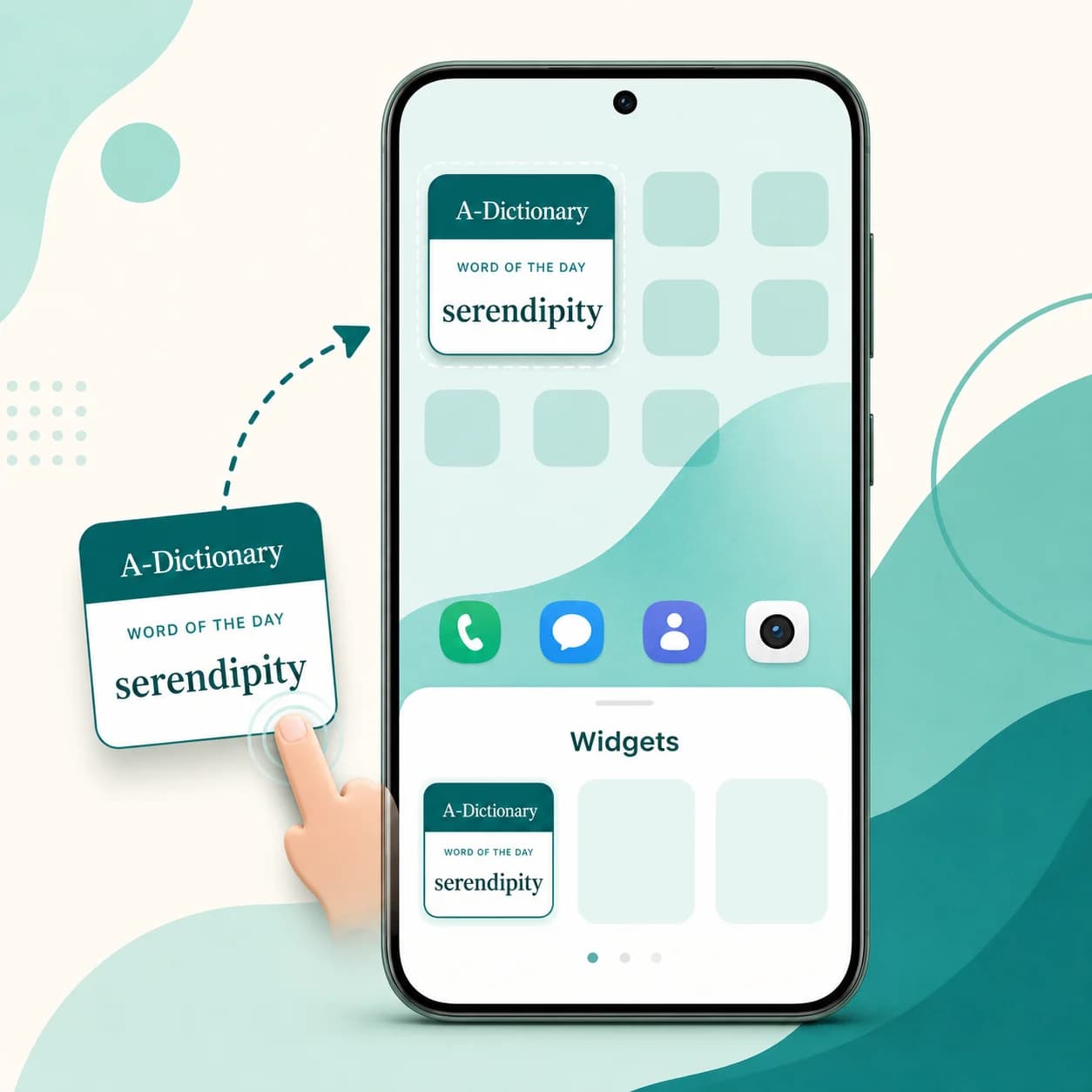
- Open A-Dictionary once, then return to the Home Screen.
- Touch and hold an empty area of the Home Screen.
- Tap Widgets.
- Find and open A-Dictionary in the widget list.
- Touch and hold the Word of the Day widget, then drag it to the Home Screen.
- Lift your finger to place it. If resize handles appear, drag them to choose the size you prefer.
The names and positions of these controls can vary slightly between phone makers. Google also provides a general Android widget guide.
Can I put it on the Android Lock Screen?
Maybe. Android Lock Screen widgets depend on your Android version, phone maker, and launcher. If your Lock Screen customization screen offers third-party widgets, look for A-Dictionary there.
If A-Dictionary is available in the Home Screen widget picker but your phone has no Lock Screen widget picker, use the Home Screen version. That limitation comes from the phone’s system software rather than the widget.
If the widget is missing or empty
- Open A-Dictionary once: newly installed widgets may not appear until their app has been launched.
- Check for an app update: older versions of the iOS or Android host app do not include the widget.
- Go online briefly: open A-Dictionary and allow it a moment to load your current word schedule.
- Search for A-Dictionary: the widget is grouped under the app name, not under a separate app called Word of the Day.
- Remove and add it again: this refreshes the widget registration and display.
- Restart the phone: this can refresh an OS widget picker that still shows an older app installation.
The widget uses the language selected by the phone or native app. The word pair itself comes from your A-Dictionary data.
Download A-Dictionary
Install A-Dictionary to use the Word of the Day widget on your phone.
